Heatmaps
Technical Analysis Charts have a built-in heatmap feature, which allows users to draw heatmaps on top of the trading data. These are essentially two-dimensional grids with various colors marking the intensity of the data in various points on the chart. The size of the heatmap, its colors, and how it is calculated, can all be freely configured. Technical Analysis Charts have no limit on how many heatmaps can be drawn on the chart simultaneously.
Heatmap data
Heatmaps are grids that consist of any number of rows and columns. For this reason, the heatmap data is given as an array of number arrays, where one array equals one heatmap row.
// Heatmap data example:
const values: number[][] = [
    [0, 15, 80, 60, 100, 77],
    [22, 10, 40, 60, 50, 30],
    [44, 30, 60, 40, 80, 90],
    [33, 40, 70, 90, 85, 77],
    [55, 50, 40, 70, 0, 62],
    [77, 65, 80, 50, 33, 55]
]
Note that the actual size given when creating the heatmap doesn't affect the row and column count. For example, a heatmap can have only 5 rows and columns but still span from 0 to 100 in axis values. Likewise, the number of rows and columns doesn't affect the heatmap's size on the chart, they only determine the density of the points within the heatmap boundaries.
Adding heatmaps
Heatmaps can be added to the chart with addHeatmap() method. The method requires four parameters to determine the heatmap size as well as the actual heatmap data.
// Adding a heatmap.
const values: number[][] = [
    [0, 15, 80, 60, 100, 77],
    [22, 10, 40, 60, 50, 30],
    [44, 30, 60, 40, 80, 90],
    [33, 40, 70, 90, 85, 77],
    [55, 50, 40, 70, 0, 62],
    [77, 65, 80, 50, 33, 55]
]
const heatmap = tradingChart.addHeatmap(0, 90, 250, 190, values)
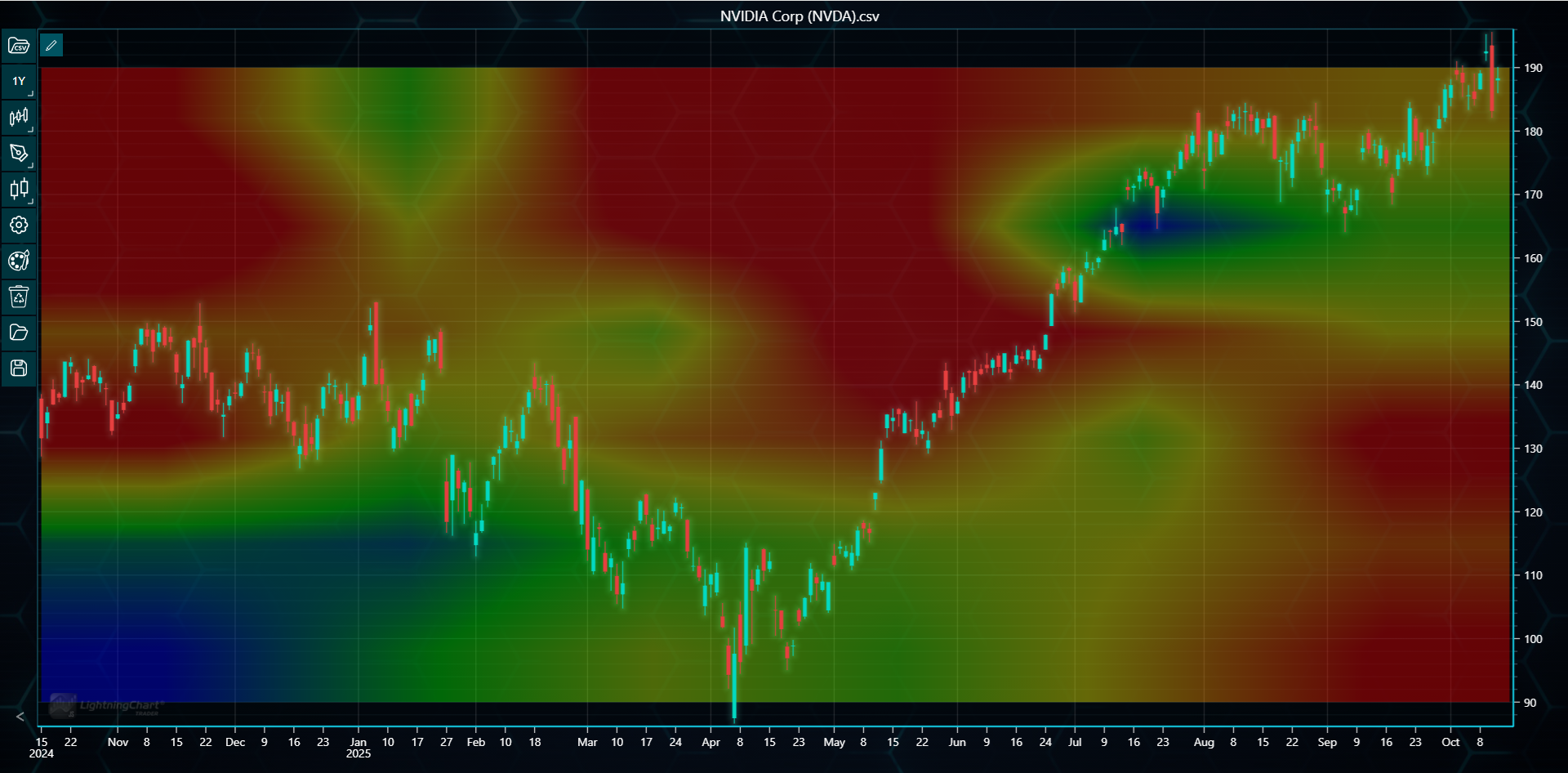
Note that heatmaps must be added to the chart in code as adding them via user interface is not supported.
Customizing heatmaps
After a heatmap has been created, it can be customized in code or via user interface similarly to technical indicators.
Palette
Often the first thing to customize is the color palette. Use setPalette() method in code to define an array of any number of steps. Each step consists of a numerical value and its respective color. The method always overrides existing palette.
// Creating a custom palette.
heatmap.setPalette([
    { value: 0, color: ColorRGBA(0, 0, 0, 0) },
    { value: 25, color: ColorRGBA(0, 0, 200, 30) },
    { value: 50, color: ColorRGBA(200, 0, 200, 40) },
    { value: 75, color: ColorRGBA(255, 150, 255, 50) },
    { value: 100, color: ColorRGBA(255, 255, 255, 60) }
])
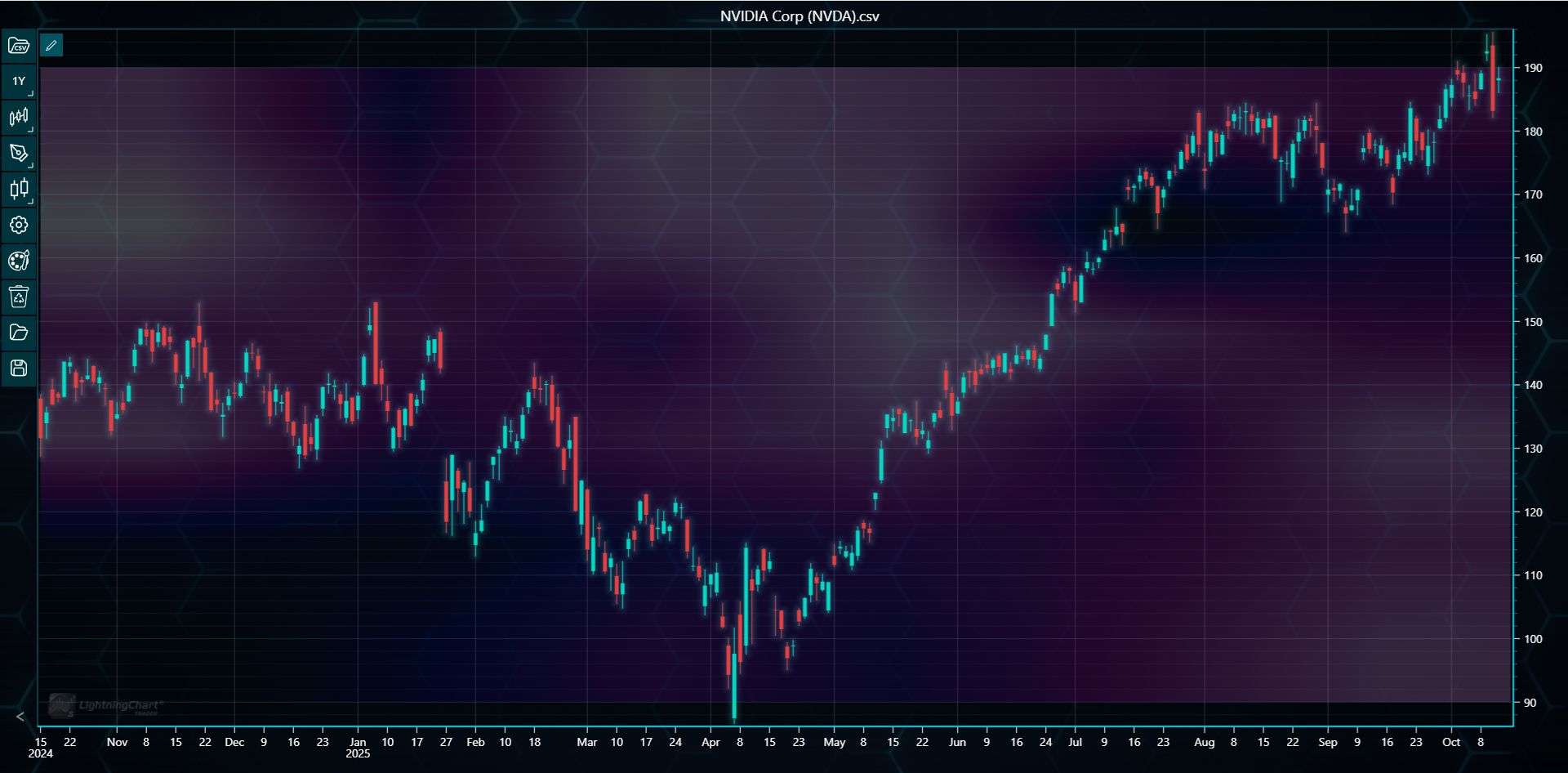
The palette can also be customized via user interface. The heatmap's settings can be found in the same settings menu in the top-left corner of the chart as all added overlay indicators. After selecting the heatmap from this menu, click the Palette button, which opens the palette menu.
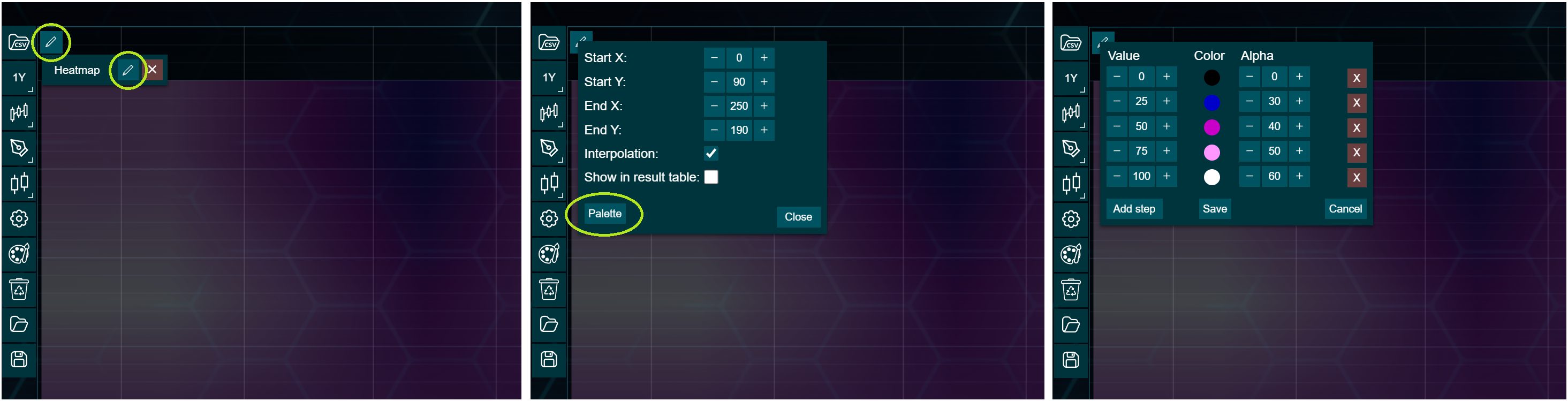
The palette menu allows configuring the value, the color, and the alpha channel of each step. Steps can also be added and removed. The changes are applied to the heatmap only when the Save button is pressed.
Other settings
Heatmaps have several other settings to configure besides palette.
Heatmap's size is given during its creation, but it can also be changed afterwards. Use setSize() to give new boundaries (startX/Y and endX/Y) to the heatmap in axis values. Since the X-axis in Technical Analysis Chart is indexed, the given X-values should be given not as DateTimes, but as numbers, where 0 is the first data point, 1 the second point etc. The given Y-values correspond to the price levels on the chart.
By default, heatmaps are not shown in the result table. This can be changed with showInResultTable(). Note that the result table doesn't show the palette's color scale. Instead only the closest heatmap point value to the cursor is shown.
Heatmaps use interpolation by default, creating a smooth gradient between the heatmap points. This can be disabled via setInterpolate() method, causing the heatmap to use uniform palette.
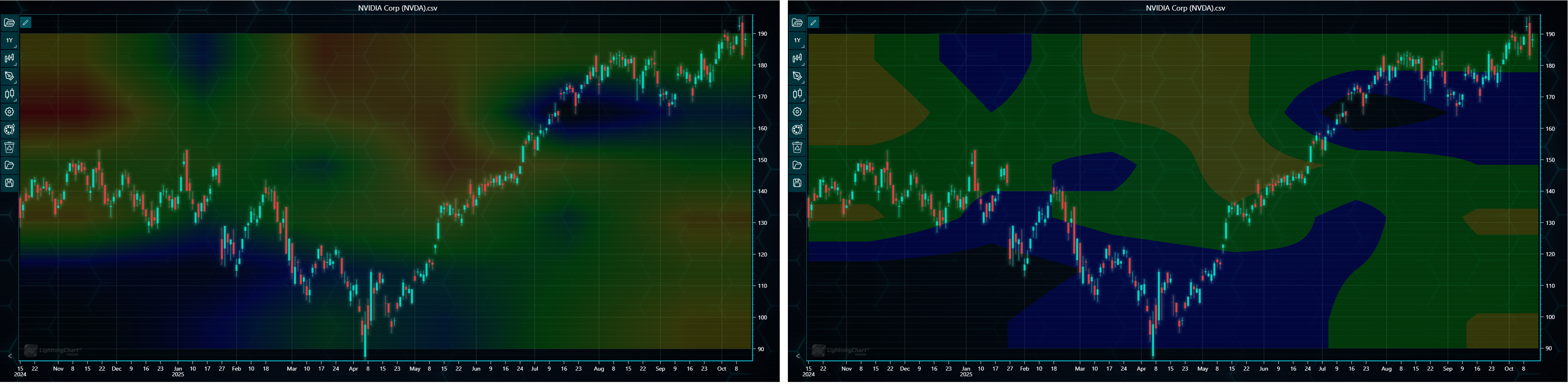
All the above settings can also be changed via user interface.