Chart settings
LightningChart JS Trader has a large number of various settings to modify the chart behavior and appearance. As with any other aspects of the chart, these can be modified via user interface, or in code.
This section explains general settings of the chart. For color and appearance settings, see "Color settings".
Chart settings via user interface
Most of the chart settings can be found in the settings menu, brought up by clicking the Chart settings button found in the toolbar to the left of the chart. Note that appearance and color related settings have their own menu.
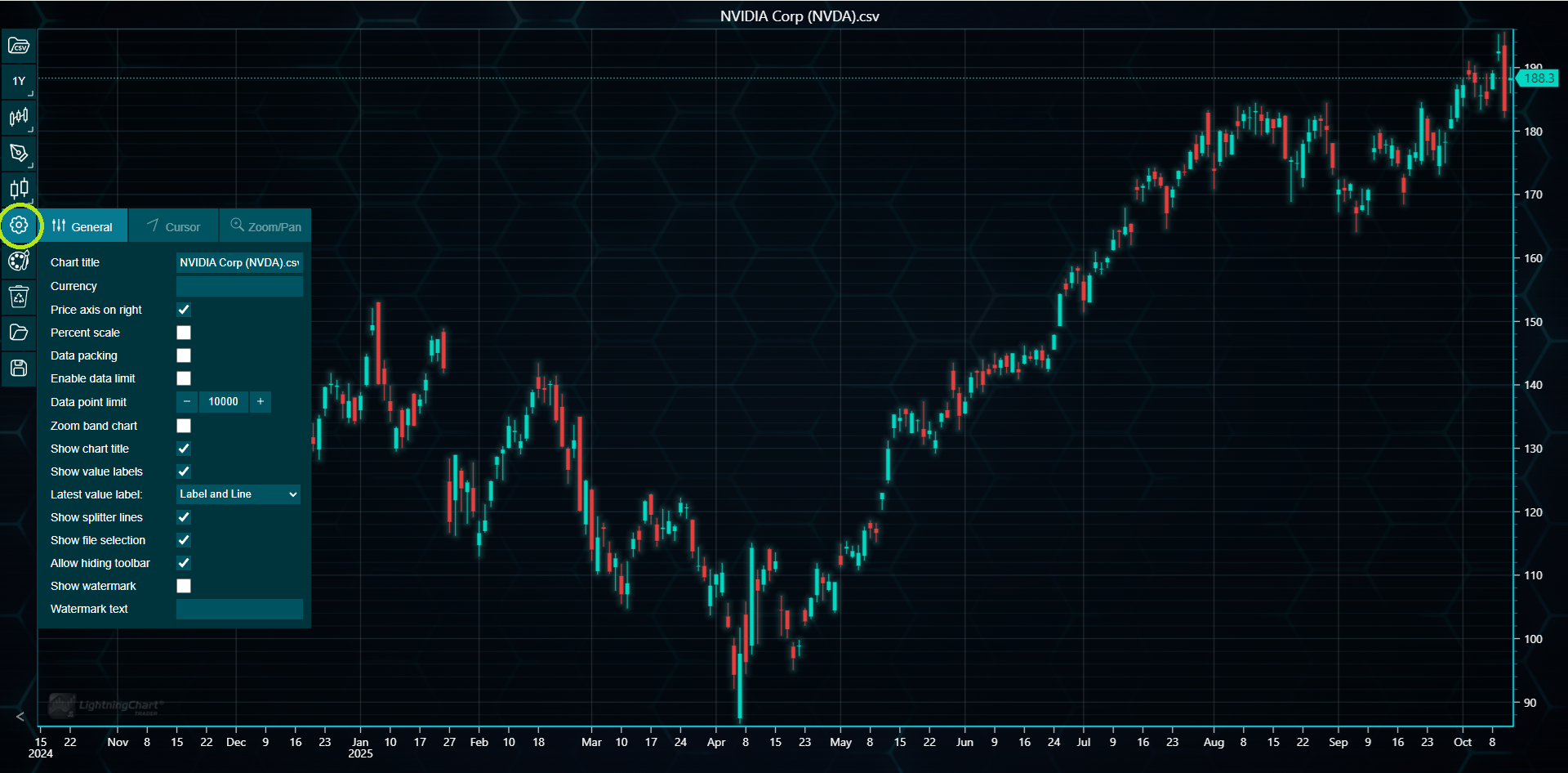
Technical indicators and drawing tools have their own respective settings menus.
For indicators, see Modifying indicators.
For drawing tools, see Modifying drawing tools.
General settings
Chart title
Allows modifying the title text shown on top of the chart.
Currency
The currency of the current dataset. When set, is shown after the chart title.
Price axis on right
Determines on which side of the chart the price axis is located. Default side is right. Note that changing this causes a page reload which results in losing the trading data added to the chart. Therefore, it is recommended to set this when creating the chart.
Percent scale
When enabled, modifies the price axis to show percentage ratios instead of price values.
Data packing
When enabled, packs the candlesticks or bars when the chart has a large number of data points. This improves performance but may cause a loss of data accuracy. Data packing is disabled by default.
Candle auto width
This setting causes candlestick and bar widths to be automatically adjusted based on the zoom level, leaving less empty space between the data points. Enabled by default.
Enable data limit
When enabled, the chart limits on how many data points can be shown simultaneously on the chart. If the limit is exceeded, the oldest data points are automatically removed. Use Data point limit setting, or setDataPointLimit() method in code, to modify the maximum number of points.
Data point limit
Sets the maximum number of data points that can be shown on the chart. If the limit is exceeded, the oldest data points are automatically removed. Data limit has to be enabled via Enable data limit, or enableDataPointLimit() in code, for this to have effect.
Zoom band chart
Shows a small zoom band chart depicting the whole X-axis range of the main chart. Appears directly below the price chart.
Show chart title
Can be used to show and hide the chart title. The chart's top margin is automatically adjusted accordingly.
Show value labels
This is a master setting to enable or disable all latest value labels in the chart. Affects the main trading data's label as well as all indicator labels. Disabling this overrides all trading data and indicator specific label settings.
Latest value label
Controls the type of the latest value label (latest Close) for the trading data. Does not affect indicators' labels.
Show splitter lines
When enabled, shows horizontal lines between the main chart and technical indicators. These lines can be dragged to resize the corresponding segments.
Show file selection
Can be used to show and hide the csv file selection button in the toolbar.
Allow hiding toolbar
When enabled, allows hiding the toolbar via the arrow button in the bottom-left corner of the chart.
Show watermark
When enabled, shows a semi-transparent watermark in the middle of the price chart. Use Watermark text setting, or setWatermarkText() method in code, to set the actual text.
Watermark text
Sets the text that is shown in the middle of the price chart, if watermark is enabled. Note that this is often updated automatically when a new dataset is added to the chart.
Cursor settings
Cursor Tracking
Allows setting which OHLC-field is being tracked by the data cursor, and what values are shown in the result table.
Result Table Position
Allows setting the position of the result table showing the current cursor values. Options include top-left corner, current cursor position, and hidden result table.
Show Horizontal Line
Shows or hides the horizontal line of the data cursor. Affects also all study indicators (indicators below the price chart).
Show Vertical Line
Shows or hides the vertical line of the data cursor. Affects also all study indicators (indicators below the price chart).
Zooming and panning settings
Wheel zooming
Defines how the chart is zoomed when the mouse wheel is scrolled. Note that Vertical zooming and Restrict X/Y-axis settings also affects the zooming behavior. There are five behavior options to choose from:
- KeepEnd - X- and Y-axis maximums are kept visible when zooming.
- KeepStart - X- and Y-axis minimums are kept visible when zooming.
- TowardsPointer - Zooms towards the current pointer location. This is the old behavior used before Trader version 3.0 release.
- Centered - Zooms towards the center of the chart.
- Off - Mouse wheel zooming is disabled.
Rectangle zooming
Defines what button is used for rectangle zooming. If this and panning are set to use the same button, panning is automatically disabled.
Panning
Defines what button is used for panning. If this and rectangle zooming are set to use the same button, rectangle zooming is automatically disabled.
Zooming sensitivity
Sets the sensitivity of wheel zooming. Value 0 means no zooming while value 1 is the default zooming sensitivity.
Vertical zooming
When disabled, chart can be zoomed only in horizontal direction. In other words, X-axis is zoomed but Y-axis is ignored.
Vertical panning
When disabled, chart can be panned only in horizontal direction. In other words, X-axis is panned but Y-axis is ignored.
Restrict X-axis
When enabled, X-axis cannot be zoomed or panned past the dataset minimum or maximum.
Restrict Y-axis
When enabled, Y-axis cannot be zoomed or panned past the dataset minimum or maximum.
Data padding
Data padding allows leaving empty space, defined in pixels, between the data and the edges of the chart. The space is automatically added after various zoom actions. Data padding for each edge can be set separately. In code, setDataPadding() method is used to set all the values at once.
X-axis left button
Sets the action happening when the X-axis is being dragged with the left mouse button. All axes have the same interaction options available:
- DragZoom - Dragging the axis causes it to stretch/contract.
- Pan - Pans the chart.
- RectangleZoom - Draws a rectangle signifying the zooming area.
- ZoomToEnd - Zooms in/out while keeping the axis end value visible.
- Off - Interaction with the respective button is disabled.
X-axis right button
Sets the action happening when the X-axis is being dragged with the right mouse button. The available options are listed above.
Y-axis left button
Sets the action happening when the Y-axis is being dragged with the left mouse button. The available options are listed above. The selected option affects also all indicator Y-axes.
Y-axis right button
Sets the action happening when the Y-axis is being dragged with the right mouse button. The available options are listed above. The selected option affects also all indicator Y-axes.
Chart settings in code
Every chart setting you can do via user interface, can also be done in code. Chart instance has various set...() and show...() methods to alter the behavior of the chart.
// Various chart settings in code.
tradingChart.showZoomBandChart(true)
tradingChart.showFileSelection(false)
tradingChart.setChartTitle('Dataset Title')
tradingChart.setPercentScale(true)
tradingChart.setOHLCCursorTracking(OHLCTrackingType.Close)
Settings for individual technical indicators and drawing tools can also be modified in code. Each indicator and drawing tool have their own methods to modify them. For further information, check the respective documentation:
For indicators, see Modifying indicators.
For drawing tools, see Modifying drawing tools.