Modifying drawing tools
This section gives basic information how to modify drawing tools added to the chart, both via user interface and in code.
Modifying drawing tools via user interface
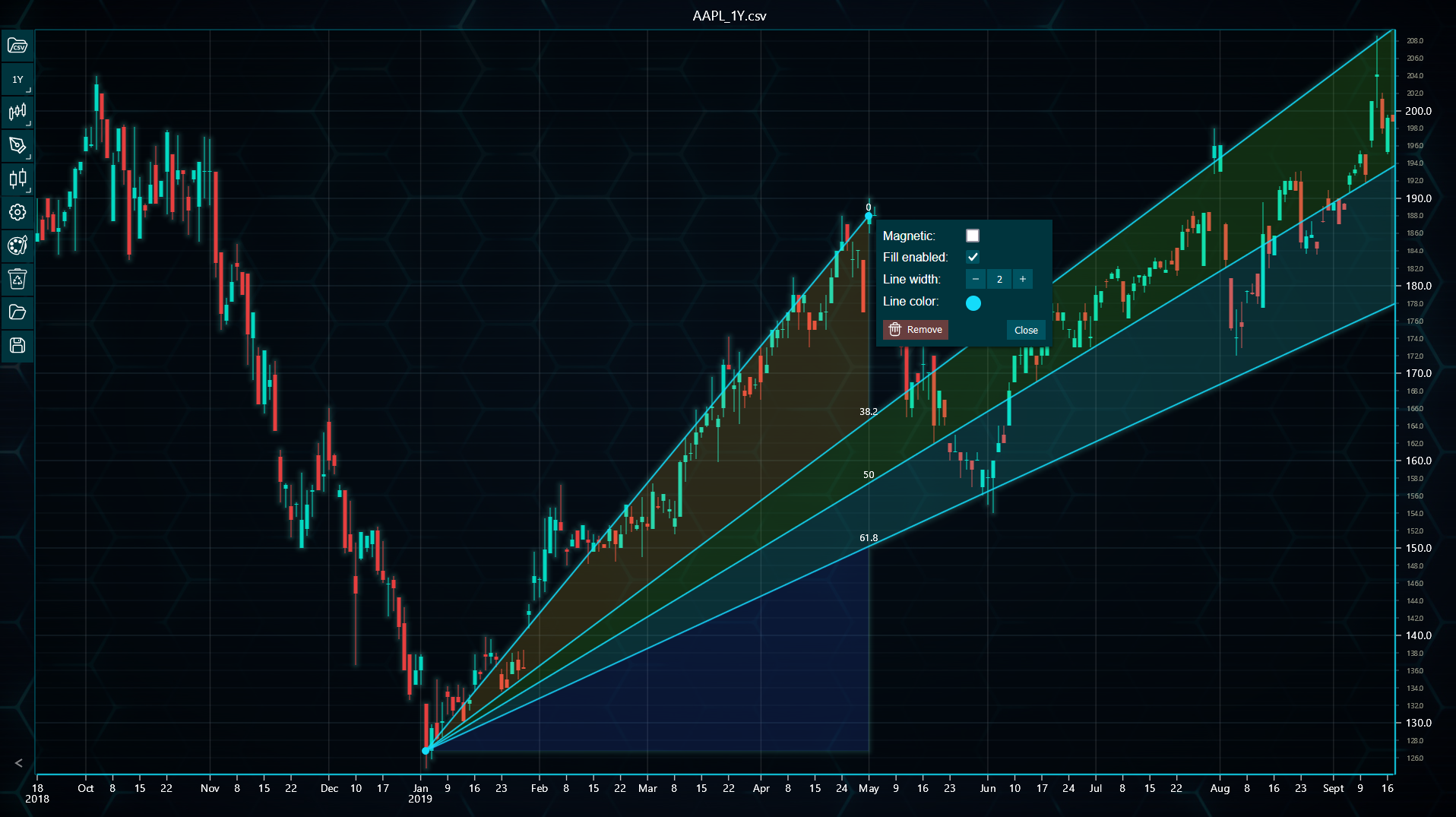
All drawing tools can be modified via its respective settings menu. This menu can be opened by right-clicking any of the tool's control points. Some drawing tools, such as horizontal and vertical lines, arrows and text elements, don't have control points. In these cases, right-clicking anywhere over the tool brings up the menu.
The settings menu lists all modifiable properties such as line width and various color and fill settings. The shown properties depend on the drawing tool itself.
Modifying drawing tools in code
Drawing tools can be modified in code by calling various tool specific set...() methods. To access these methods, the tool should be saved as a variable beforehand.
Furthermore, it is possible to update the drawing tool's position via drawingTool.updatePosition() method. You will need to give the method X- and Y-position values for each of the drawing tool's control points. There is also getPosition() method which can be used to get the drawing tool's current position. It can be handy when updating some, but not all control point locations.
const trendLine = tradingChart.drawingTools().addTrendLine(10, 30, 40, 20)
trendLine.setLineWidth(2)
trendLine.setLineColor('#00FFFF')

// Updating drawing tool's position
trendLine.updatePosition(10, 50, 40, 60)
Note that in LightningChart JS Trader, the color values for respective methods should be given in HEX format e.g. #FFFFFF. If the method doesn't seem to do anything, check the console of your browser, as Trader often informs the user in case the given values are in wrong format.