Chart types
LightningChart JS Trader includes several various chart types to choose from. Chart type determines how the price information is shown in the chart.
Changing chart type
The chart type can be changed via Chart Type button found amongst the UI buttons in the toolbar to the left of the chart. Clicking the button opens a list of available chart types. Selecting a chart type in the list will change the chart to use that type.
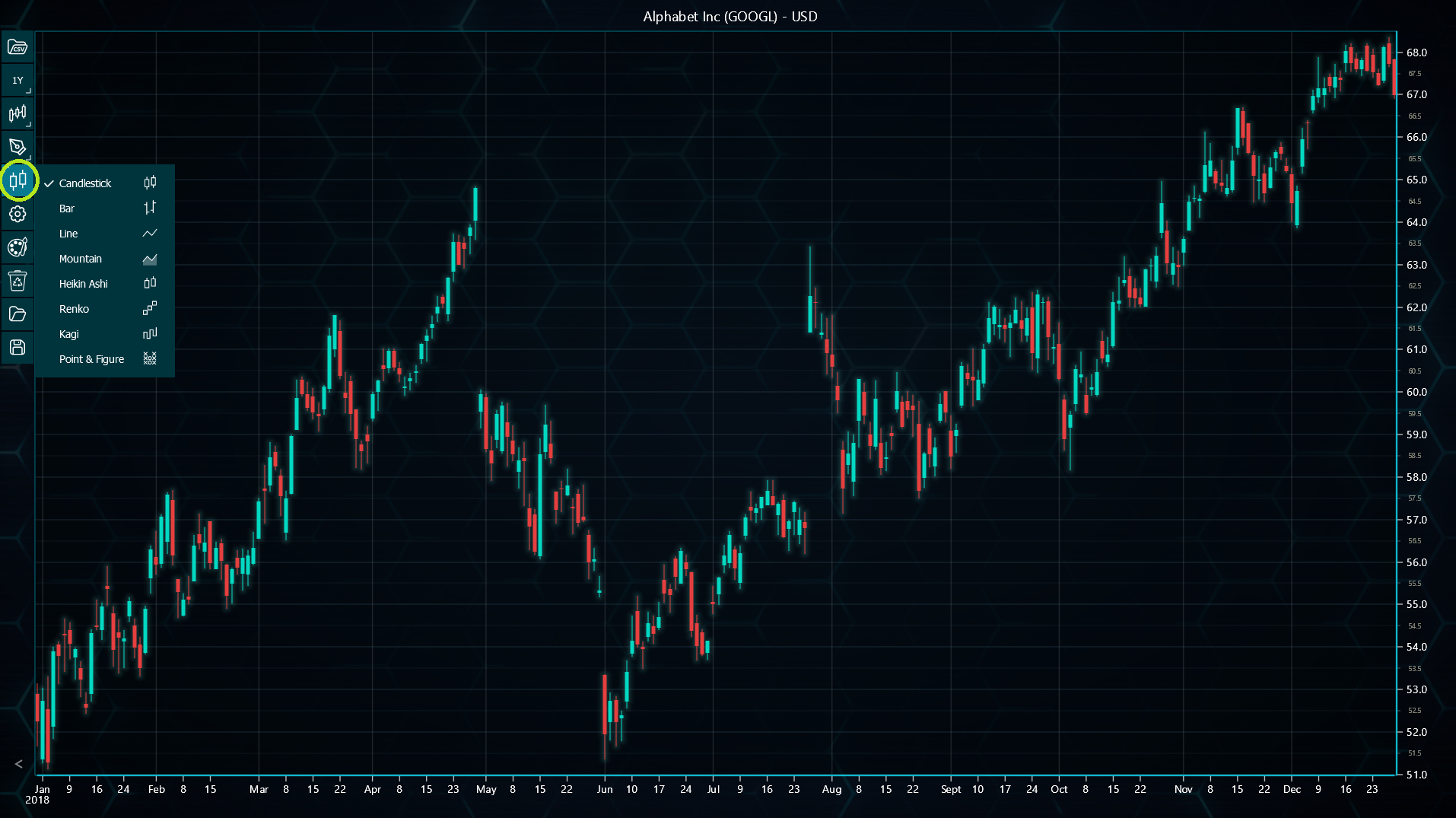
The chart type can also be changed in code with setPriceChartType() method.
// Setting the chart type in code.
tradingChart.setPriceChartType(PriceChartType.Bar)
Available chart types
| Type | Description | Example |
|---|---|---|
| Candlestick | Candlestick charts show price movements using Open, High, Low, and Close values for user-selected time periods. Candlesticks consist of a body part displaying Open and Close values, and shadows (wicks) displaying High and Low values. The appearance of the candlesticks can be modified via the "Color settings" menu, or in code with respective methods. | 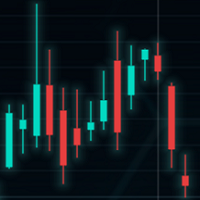 |
| Bar | Bar charts show price movements using Open, High, Low, and Close values for user-selected time periods. Bar charts consist of a vertical line displaying High and Low values, and two small horizontal lines displaying Open and Close values. The appearance of the bars can be modified via the "Color settings" menu, or in code with respective methods. | 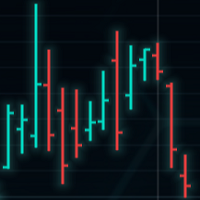 |
| Line | Line chart draws a simple line based on the Close values of the dataset. The color of the line can be modified via the "Color settings" menu, or with setLineColor() method in code. | 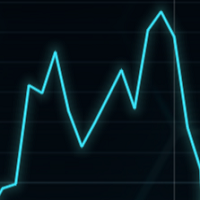 |
| Mountain | Mountain chart, also known as Area chart, is similar to Line chart, the only difference being that the area below the line is colored. The area color cannot be set individually. Instead, it uses a semi-transparent version of the line color. | 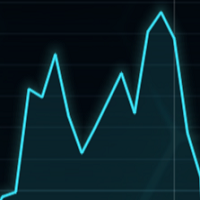 |
| Heikin Ashi | Heikin Ashi is a modified Candlestick chart, which uses average prices of the current and prior timeframe. The appearance of the candlesticks can be modified similarly to regular Candlestick charts, via the "Color settings" menu, or in code with respective methods. | 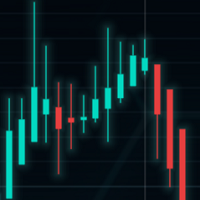 |
| Renko | Renko chart consists of equal-sized bricks. When the price moves up or down a specified amount (box size), a new brick will be drawn. Renko brick size can be based on Close values, High-Low range, Percentage of the price, or Average True Range (ATR) indicator. Use setRenkoBaseType() to change this. | 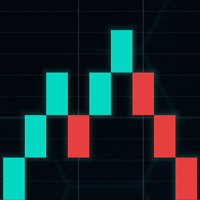 |
| Kagi | Kagi is a line chart changing direction when the price moves by a certain amount. It is constructed using a series of connected, time-independent vertical lines. Kagi chart can be based on Close values, High-Low range, Percentage of the price, or Average True Range (ATR) indicator. Use setKagiBaseType() to change this. | 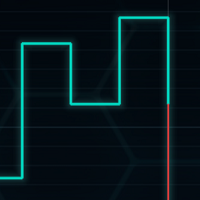 |
| Point & Figure | Point-and-Figure is a time-independent chart consisting of columns of stacked X's and O's, where the X's indicate rising prices while the O's indicate falling prices. Point-and-Figure box size can be based on Close values, High-Low range, Percentage of the price, or Average True Range (ATR) indicator. Use setPointAndFigureBaseType() to change this. | 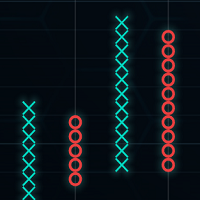 |
Modifying special chart types
Special charts like Renko, Kagi, and Point & Figure have chart type specific settings which other chart types don't have. These include for instance Box size for Renko and Reversal amount for Point-and-Figure. When the chart type is set to one of these charts, respective chart will appear in the same menu as overlay indicators. Its settings can then be modified similarly to the indicators.
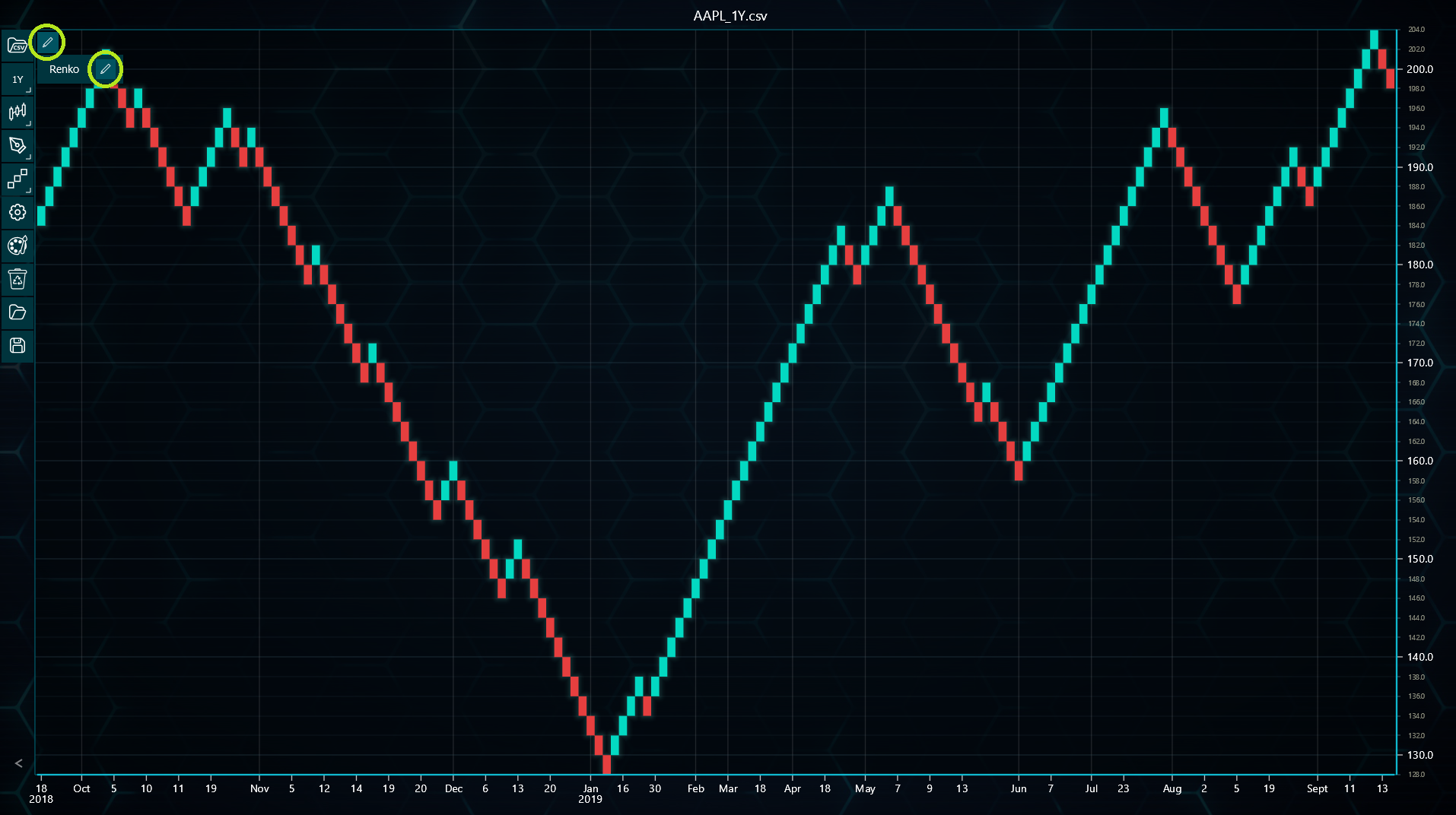
To change special chart specific settings in code, the chart has to be gotten via respective getChartTypeInstance method, for example getRenkoInstance(). This allows access to methods like setBoxSize() or setReversalAmount().
// Modifying Renko specific settings in code.
const renko = tradingChart.getRenkoInstance()
if (renko) {
    renko.setRenkoBaseType(BaseType.HighLowRange)
    renko.setBoxSize(2)
}
Note that getRenkoInstance() and other similar methods work only when the chart type is set to respective type. For instance, if getRenkoInstance() is called when the chart type is set to Candlesticks, the method will return null. Hence the null check in the above code.
Limitations with chart types
Some Trader features are not available for all chart types. For instance, certain technical indicators require Open, High, Low and Close values, or some combination of them, in their calculations. However, some chart types such as Kagi do not show all these values, making it impossible to calculate the indicator properly. In these cases, the indicator appears as empty.
Symbol comparison is unavailable for Renko, Kagi, and Point & Figure chart types due to irregular time axis. If user wants to compare for example a Renko chart with a traditional Candlestick chart, two instances of Trader need to be created. Likewise, Zoom Band Chart is currently not supported with Renko, Kagi and Point & Figure chart types.