Modifying indicators
This section gives basic information how to modify technical indicators added to the chart, both via user interface and in code.
Modifying indicators via user interface
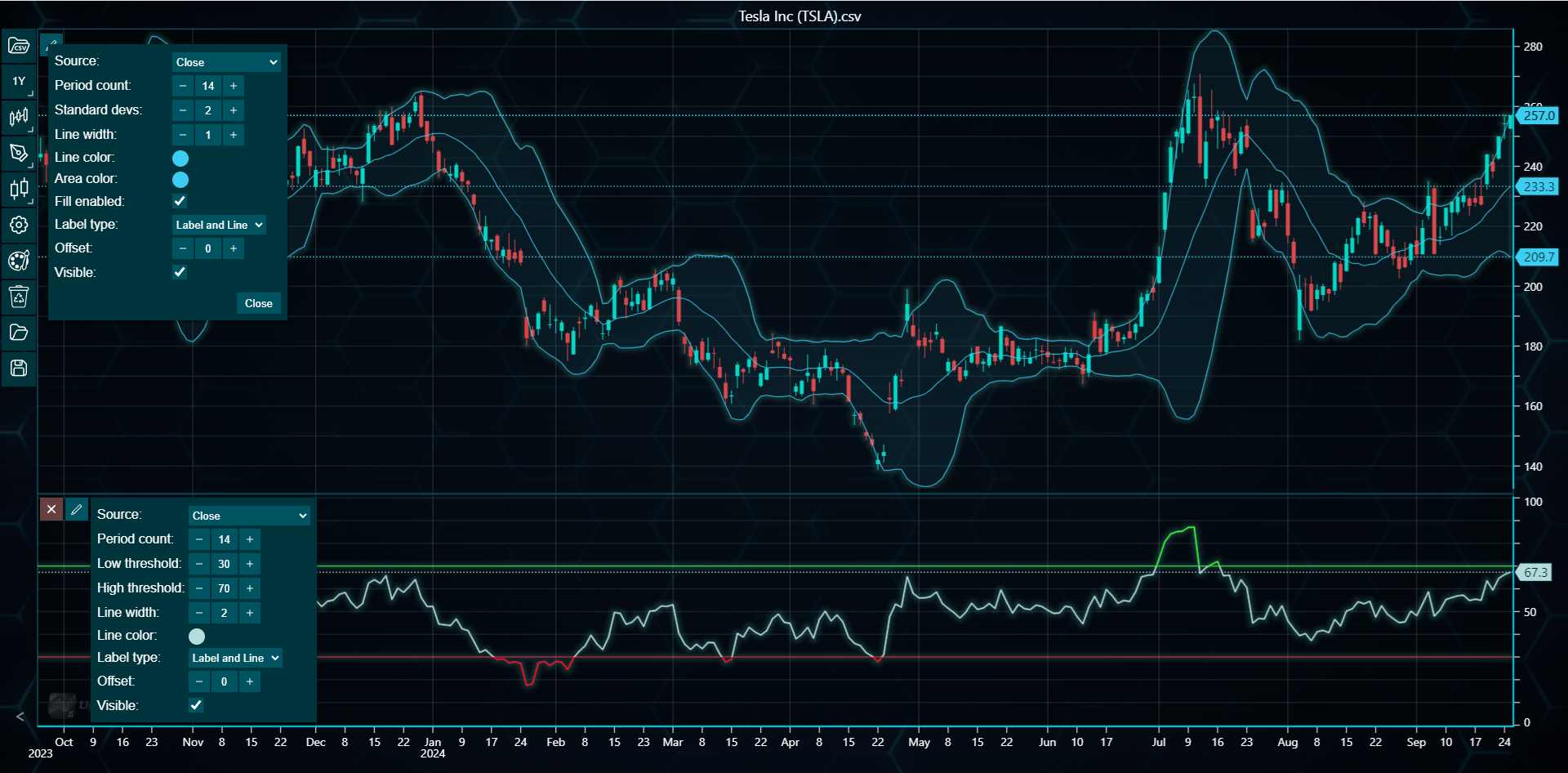
All technical indicators can be modified via its respective settings menu. This menu can be opened by clicking the Indicator settings button for study indicators (indicators appearing below the price chart), located in the top-left corner of the indicator's segment, or by clicking the Edit indicator button for overlays (indicators rendered on top of the price data), found within the indicator settings menu accessible via the top-left corner of the main chart.
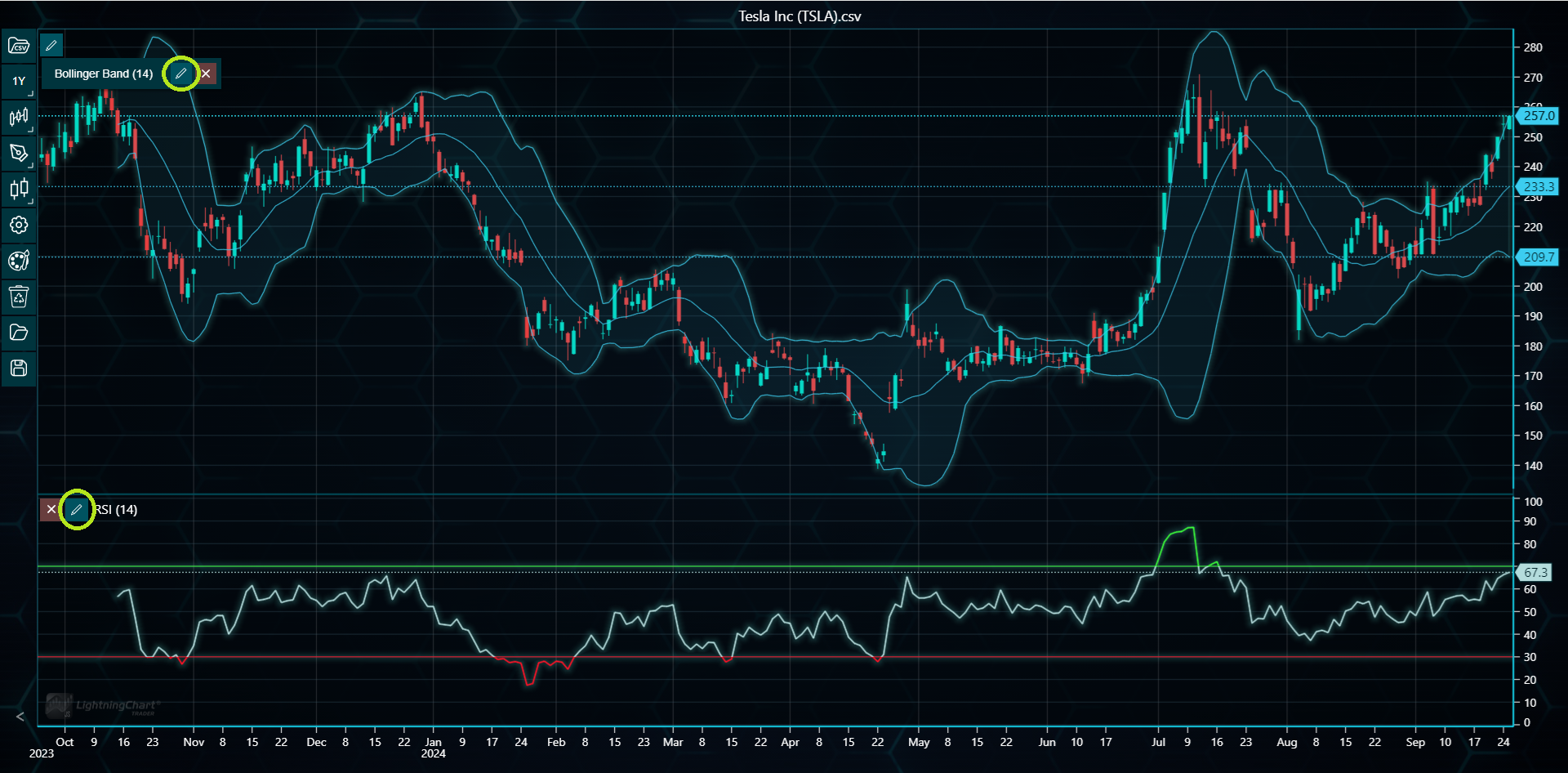
The settings menu lists all modifiable properties such as time period count, line width and indicator color settings. The shown properties depend on the indicator itself.
Modifying indicators in code
Technical indicators can be modified in code by calling various indicator specific set...() methods. To access these methods, the indicator should be saved as a variable beforehand.
const sma = tradingChart.indicators().addSimpleMovingAverage()
sma.setPeriodCount(20)
sma.setLineWidth(2)
sma.setLineColor('#00FFFF')
Note that in LightningChart JS Trader, the color values for respective methods should be given in HEX format e.g. #FFFFFF. If the method doesn't seem to do anything, check the console of your browser, as Trader often informs the user in case the given values are in wrong format.