Pie Chart
Visualizes proportions and percentages between categories, by dividing a circle into proportional segments.
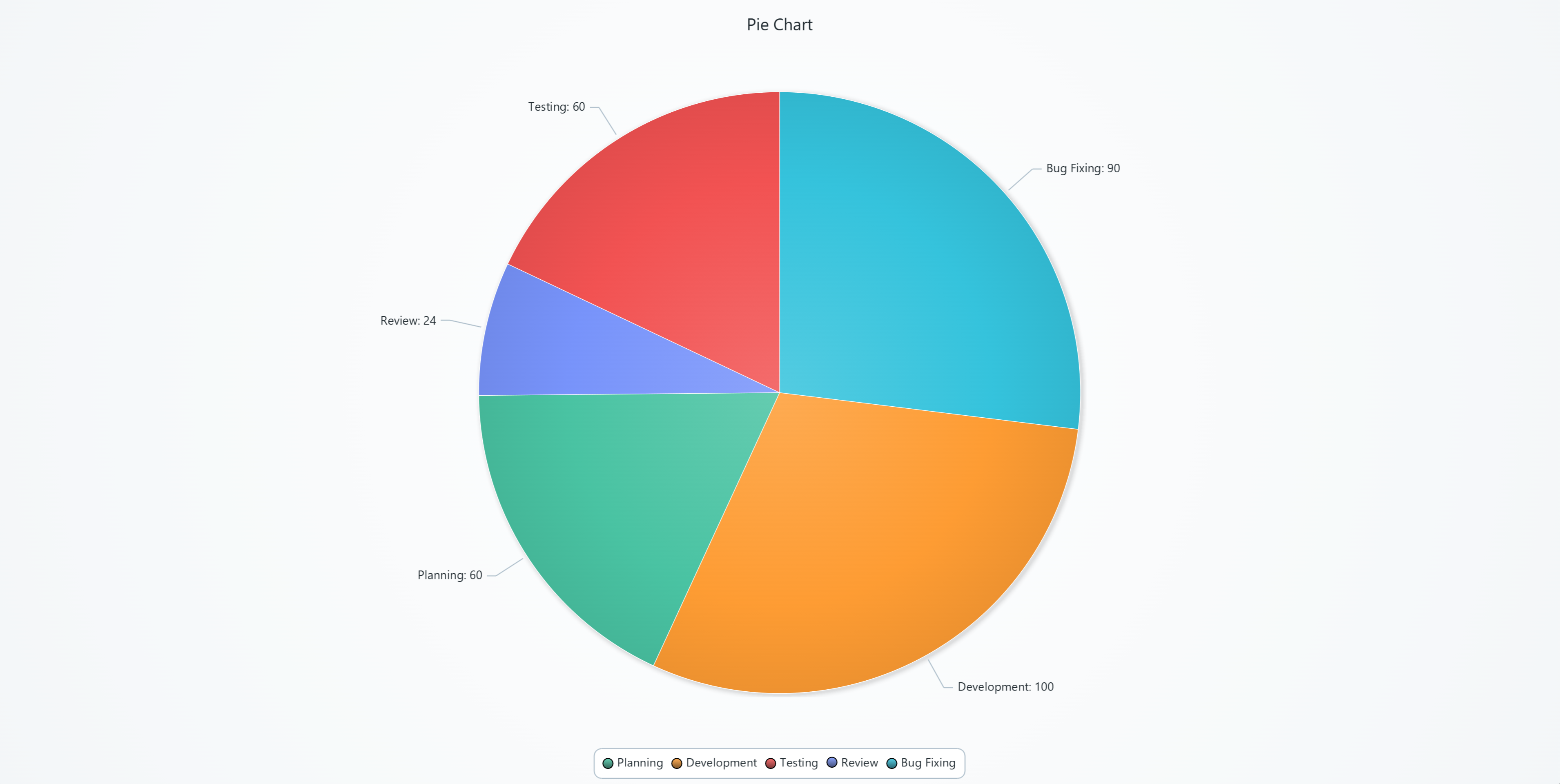
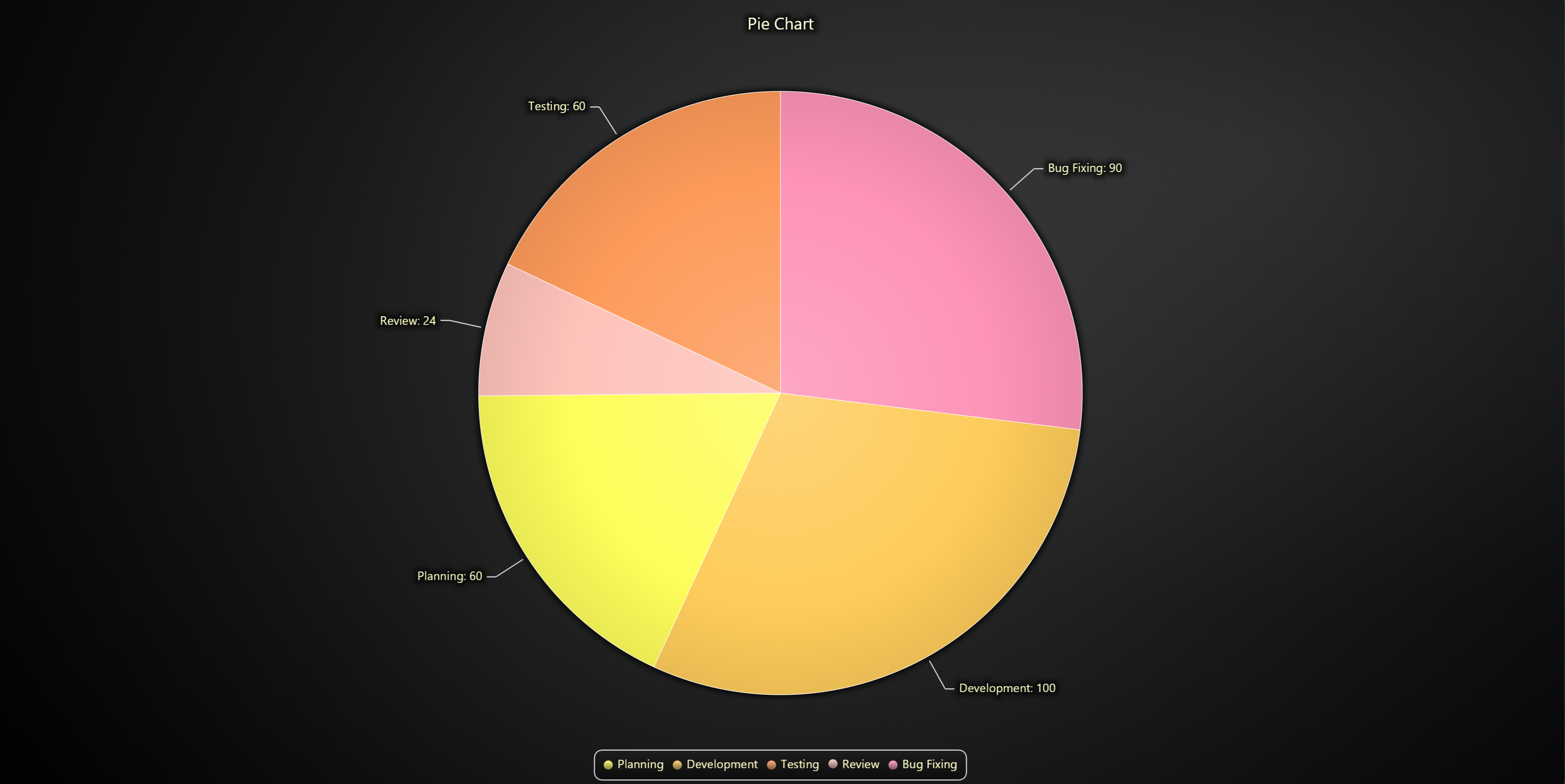
Creating Pie Chart
import lightningchart as lc

chart = lc.PieChart(title='Pie Chart', theme=lc.Themes.Light)
Appearance Customization
Customize the look and layout of your Chart using the following methods.
Title
chart.set_title_color('#3498db')
chart.set_title_font(size=20, weight='bold')
chart.set_title_margin(10)
chart.set_title_rotation(0)
chart.set_title_effect(True)
Padding
Adjusts the space around the chart's plot area.
chart.set_padding(10)  # Uniform padding
chart.set_padding(left=10, top=15)  # Specific sides
chart.set_padding(left=10, top=15, right=20, bottom=25)  # All sides
Background Color
Sets the background fill color of the chart.
chart.set_background_color("#ffffff")
Background Stroke
Defines the border (stroke) around the chart's background.
chart.set_background_stroke(2, "#cccccc")
Label Formatting & Styling
Control what appears in each slice's label and how it looks.
# Choose what the label shows: only name, name + value, or name + percentage
chart.set_label_formatter("NamePlusRelativeValue")

# Change the text color of every slice label
chart.set_label_color('#333333')

# Adjust label font size, family, weight, and style
chart.set_label_font(
    size=14,
    family="Arial, sans-serif",
    style="italic",
    weight="bold"
)

# Enable or disable the theme's built-in label glow/drop-shadow
chart.set_label_effect(True)
Slice Effects & Colors
Add extra visual flair to the slices themselves and control their fill colors.
# Turn on the theme's slice effect
chart.set_slice_effect(True)

# Apply a specific list of colors—one per slice, in order
chart.set_slice_colors([
    '#E15759',
    '#59A14F',
    '#4E79A7',
    '#F28E2B'
])

# Sort slices by name, ascending value, descending value, or leave as-is
chart.set_slice_sorter("valueDescending")

# Set distance between slice and label
chart.set_label_slice_offset(10)

# Attach lookup table (LUT) to fill the slices with Colors based on value
chart.set_lookup_table(
    steps=[
        {'value': 0, 'color': '#ADD8E6'},
        {'value': 500, 'color': '#FF0000'},
        {'value': 1500, 'color': '#00008B'},
    ],
    interpolate=True,
    percentage_values=False,
)
Connector Adjustments
Fine-tune the lines that link labels to slices.
# Gap between slice edge → connector start → connector end → label
chart.set_label_connector_style(
    style="dashed",
    thickness=1,
    color='#666666'
)
chart.set_label_connector_end_length(20)
chart.set_label_connector_gap_start(8)
Adding & Exploding Slices
Dynamic control over slice data and “explosion” behavior.
# Add slices one-by-one or in bulk
chart.add_slice("Q1", 25)
chart.add_slices([
    {"name": "Q2", "value": 30},
    {"name": "Q3", "value": 20},
    {"name": "Q4", "value": 25}
])

# Allow multiple slices to be “pulled out” at once
chart.set_multiple_slice_explosion(True)

# How far exploded slices move away from center (in px)
chart.set_slice_explosion_offset(16)

# Outline each slice with a thin dark border
chart.set_slice_stroke(1, '#222222')
Donut Chart
Pie Chart can also be used to create a Donut Chart, using pie_chart.set_inner_radius method
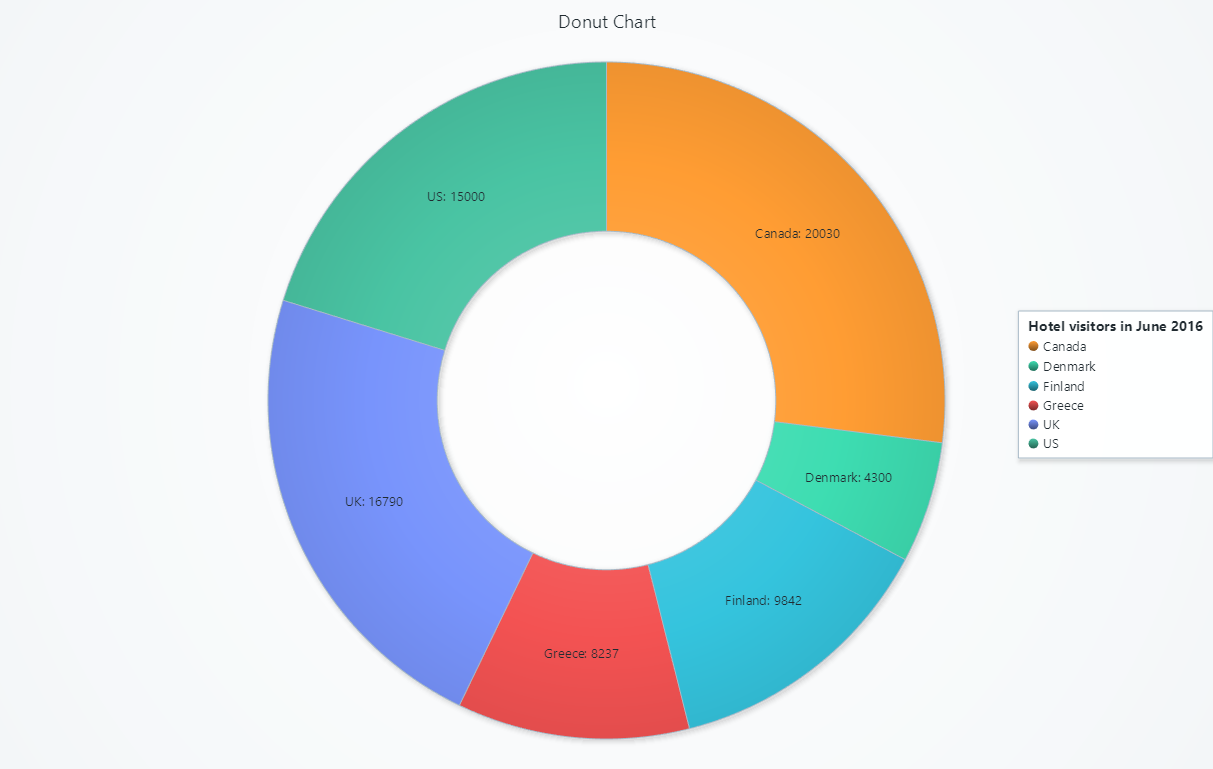
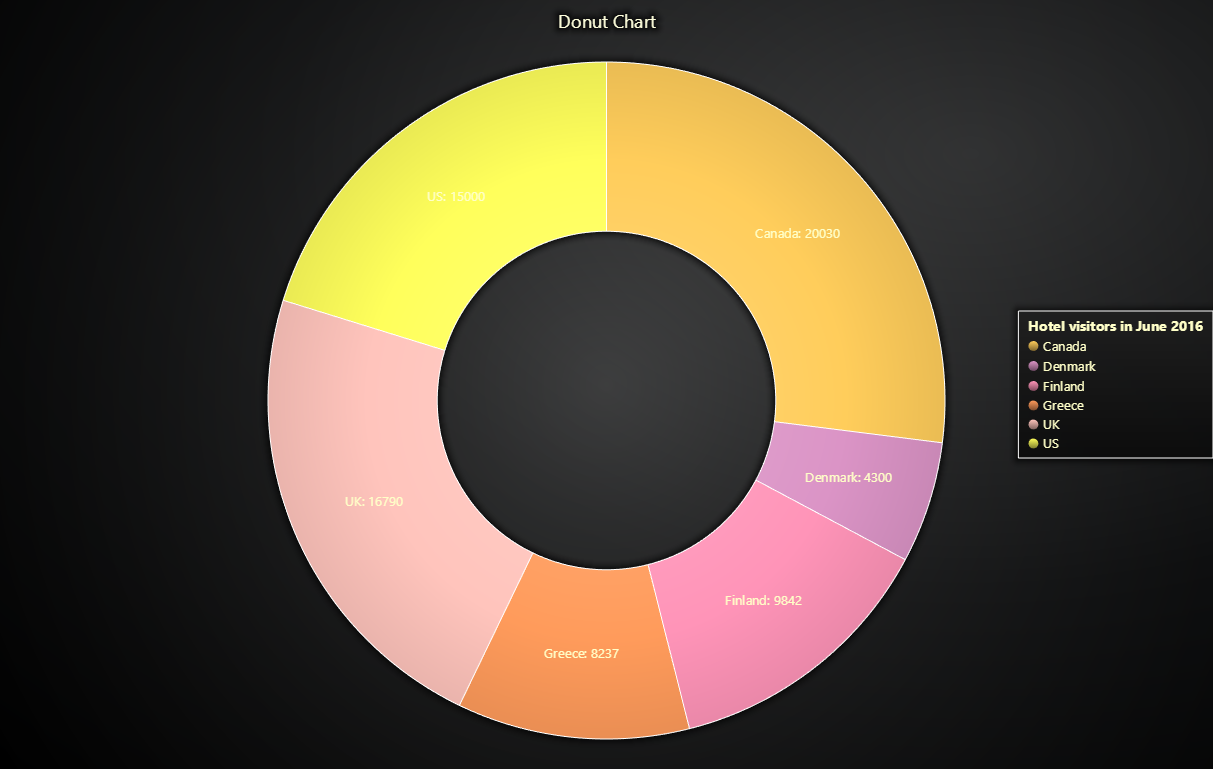
# Turn this into a donut by hollowing out the center (percentage of outer radius)
chart.set_inner_radius(40)
Set padding
# To set padding around the chart in pixels
chart.set_padding(left=10, top=15, right=20, bottom=25)
Disable/Enable animations
# To disable or enable all animations of the Chart
chart.set_animations_enabled(True)
Coordinate Transformation
Please refer to Coordinate Transformation section.
Add TextBox
Please see common TextBox section.
Cursors
Please see common Cursors section.
Legend
Please see common legend section.