Step
Step Series
Series type for visualizing a list of points (pair of X and Y coordinates), with an automatic stepping interpolation resulting in only sharp turns of the curve.
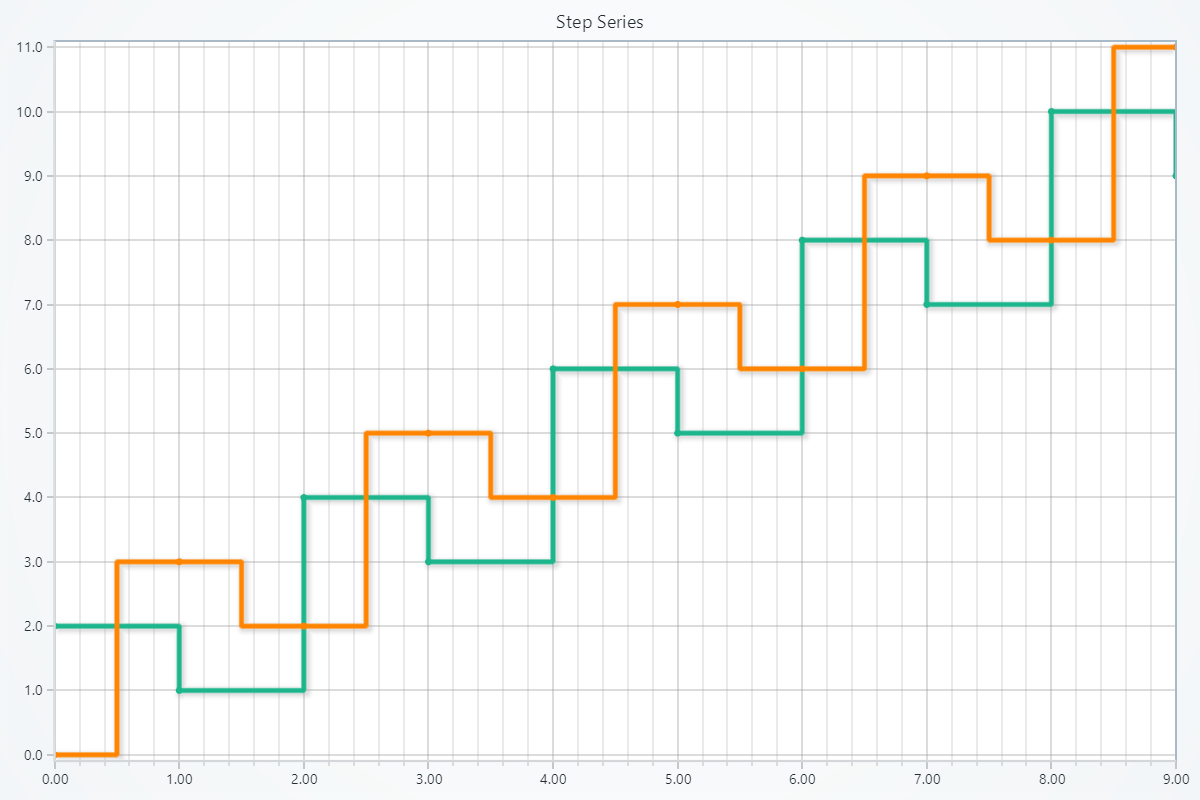
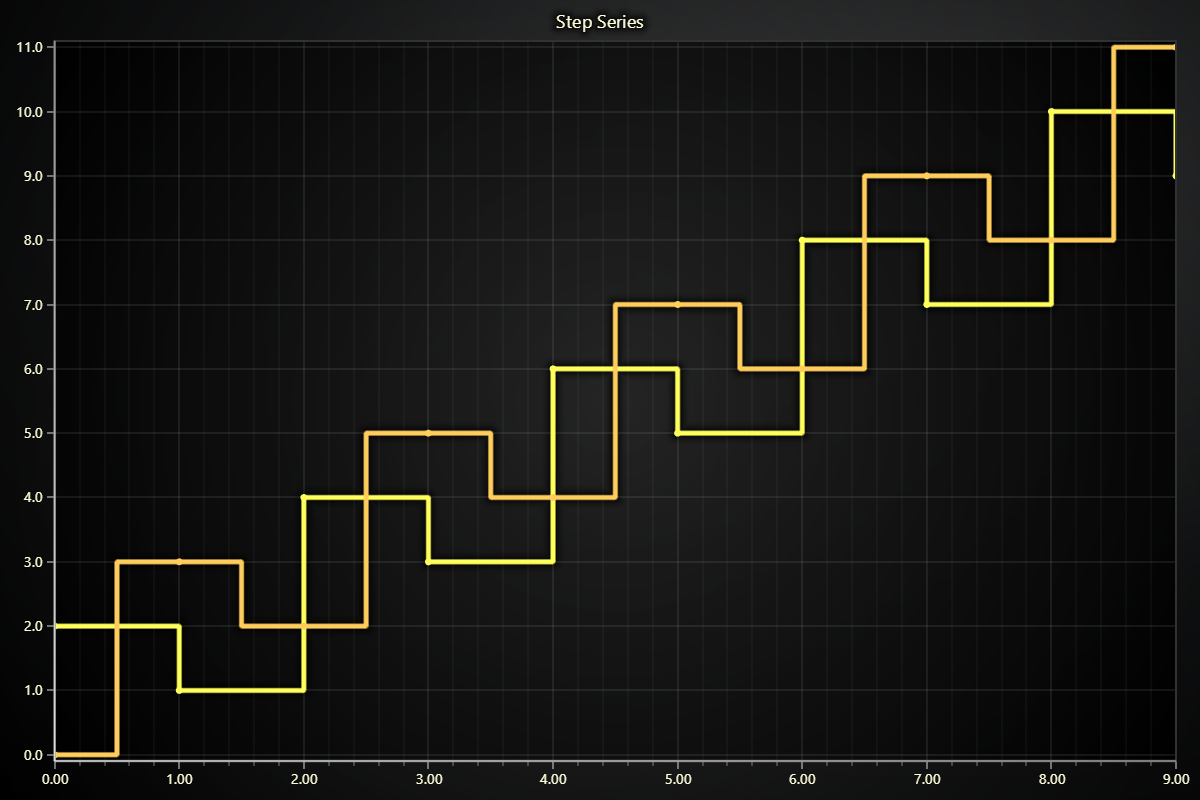
Creating Step Series
series = chart.add_step_series()
Adding Data
There are many different ways you can add data to a step series. The most basic way is to specify two lists of number values, one for X coordinates, and another for Y coordinates.
# Using x and y lists:
x_values = [0, 1, 2, 3]
y_values = [1, 3, 2, 4]
series.add(x_values, y_values)
Please refer to Adding Data to Charts section to see other available ways of adding data to a series.
Schema and Data Mapping
This section works the same as for Line, to avoid duplication of guides, please refer to the section under Line
Customizing Fill Coloring
Using Solid Point Color
import lightningchart as lc

series.set_point_color((255, 0, 0))
series.set_point_color('#FF0000')
series.set_point_color('red')
Using Solid Line Color
import lightningchart as lc

series.set_line_color((255, 0, 0))
series.set_line_color('#FF0000')
series.set_line_color('red')
Set Palette Coloring for Points
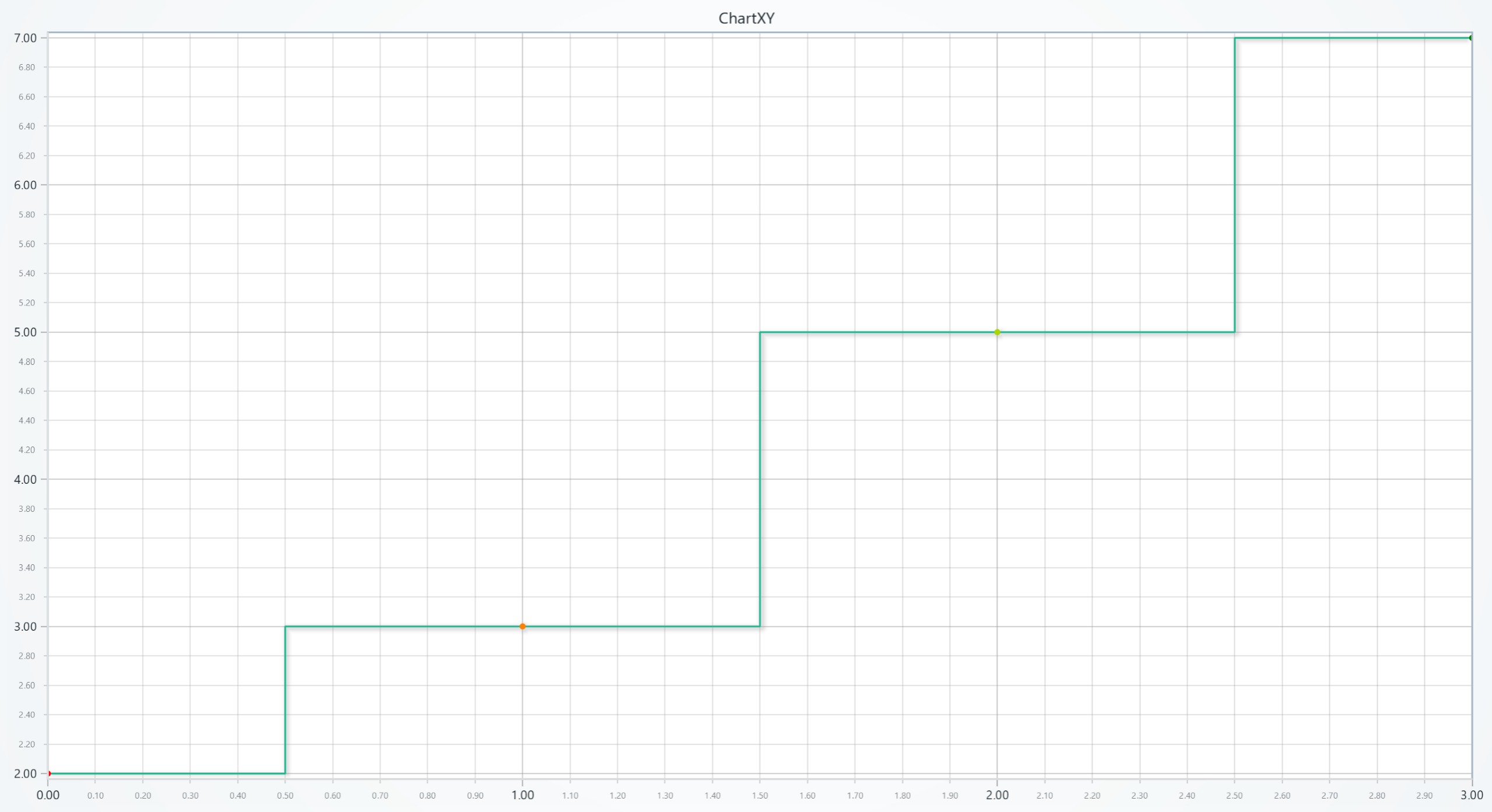
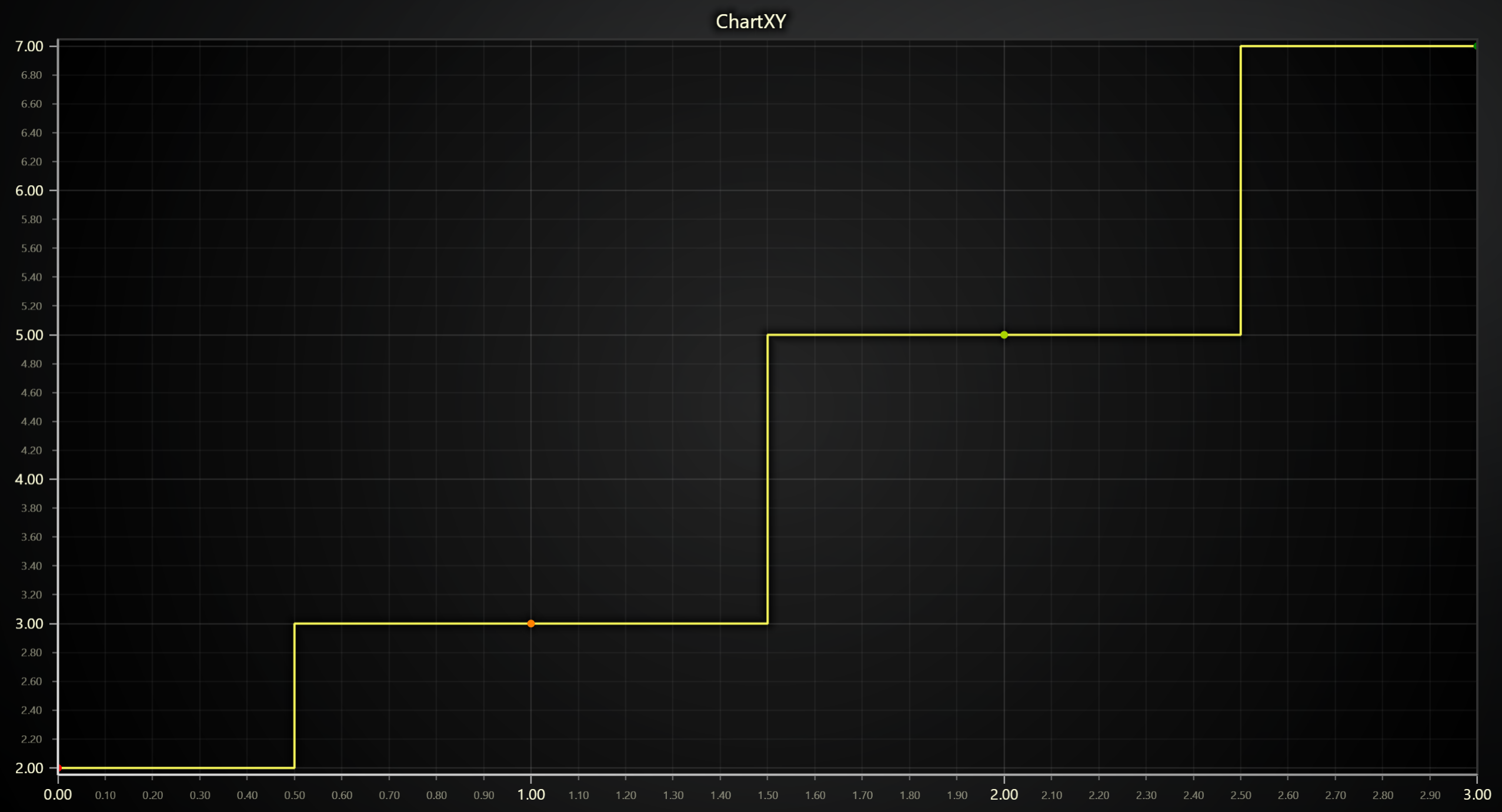
chart = lc.ChartXY(title='ChartXY', theme=lc.Themes.White)
series = chart.add_step_series()


x_values = [0, 1, 2, 3]
y_values = [2, 3, 5, 7]
series.add(x_values, y_values)

# Define a palette for the point coloring to interpolate between red, yellow and green:
series.set_palette_point_coloring(
    steps=[
        {'value': 2, 'color': '#FF0000', 'label': 'Min'},
        {'value': 4, 'color': (255, 255, 0)},
        {'value': 7, 'color': 'green', 'label': 'Max'},
    ],
    look_up_property='y',
    interpolate=True,
)

# With formatted legend display:
series.set_palette_point_coloring(
    steps=[
        {'value': 0, 'color': '#0000FF'},
        {'value': 100, 'color': '#FF0000'},
    ],
    look_up_property='value',
    formatter_precision=2,           # Decimal places
    formatter_unit='mag',             # Unit suffix
    formatter_scale=1.5,              # Scale values
    formatter_type='scientific',      # 'standard', 'compact', 'engineering', 'scientific'
    formatter_operation='floor',      # 'none', 'round', 'ceil', 'floor'
)
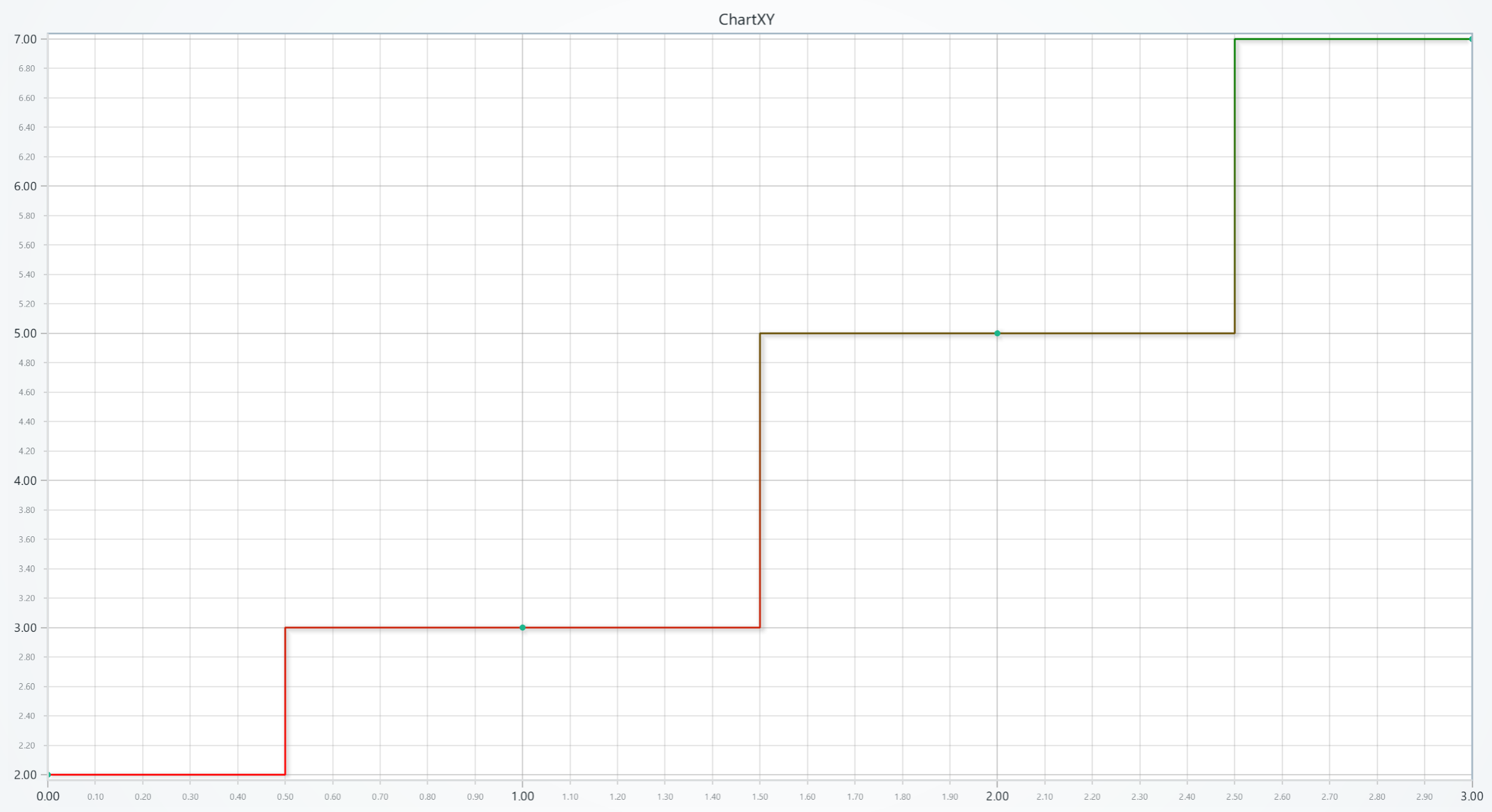
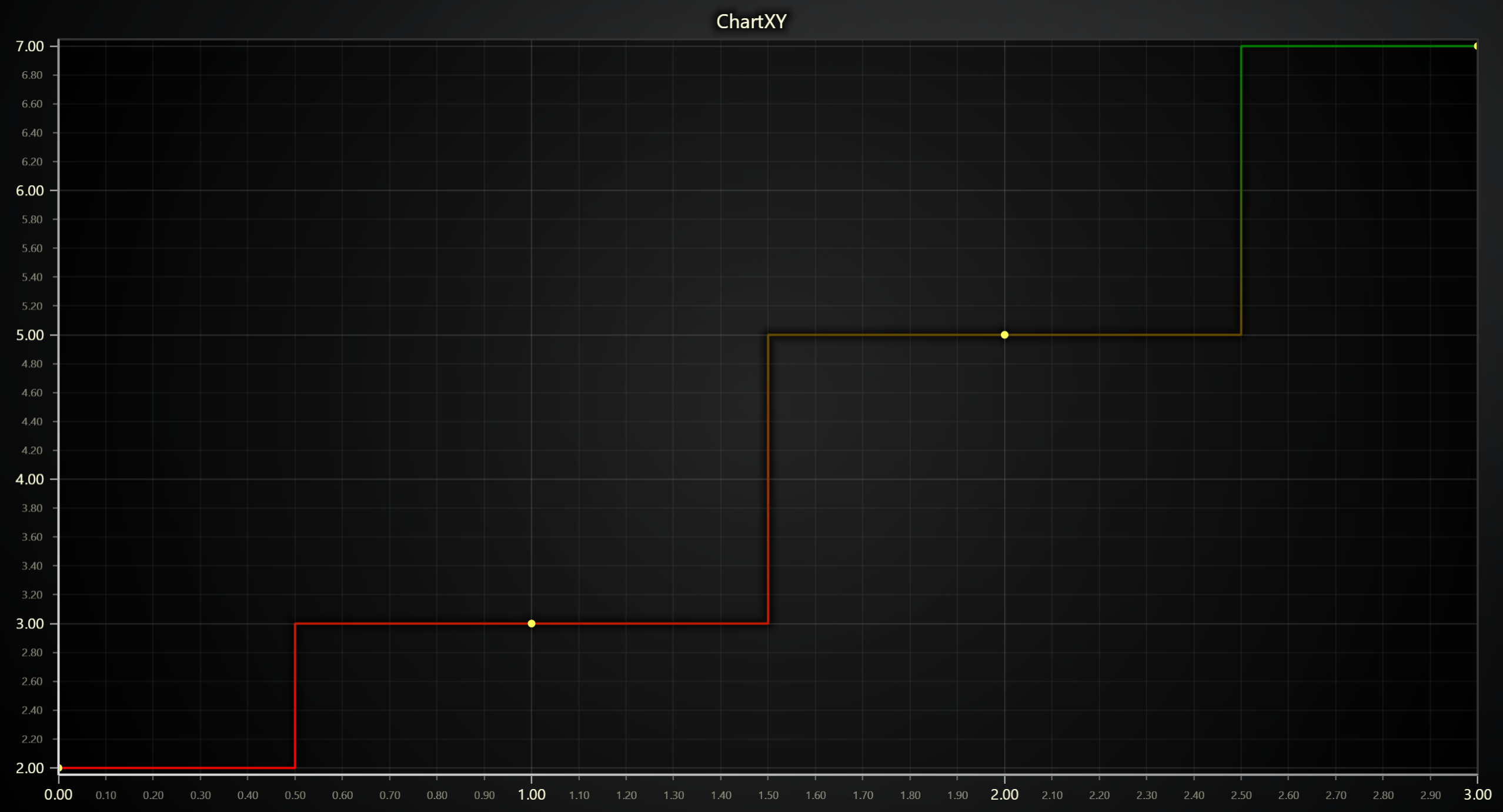
Set Palette Coloring for Lines
chart = lc.ChartXY(title='ChartXY', theme=lc.Themes.White)
series = chart.add_step_series()


x_values = [0, 1, 2, 3]
y_values = [2, 3, 5, 7]
series.add(x_values, y_values)

# Define a palette for the line stroke to interpolate between red and green:
series.set_palette_line_coloring(
    steps=[
        {'value': 2, 'color': '#FF0000'},
        {'value': 7, 'color': 'green'},
    ],
    look_up_property='y',
    interpolate=True,
)
Customizing Line Appearance
Changing Line Thickness
series.set_line_thickness(5)
Changing Line Pattern
import lightningchart as lc

series.set_dashed(pattern="Dashed", thickness=3, color='#0000FF')
Available patterns include: "DashDotted", "Dashed", "DashedEqual", "DashedLoose", "Dotted", and "DottedDense".
Changing Point Shape
series.set_point_shape('circle')
Available patterns include: "arrow", "circle", "cross", "diamond", "minus", "plus", "square", "star" and "triangle".
Changing Point Size
series.set_point_size(5)
Changing Point Stroke Style
series.set_point_stroke_style(style='solid', thickness=2, color="#ff0000")
Changing Point rotation
series.set_point_rotation(45)
Enabling or Disabling Individual Point Color Attributes
series.set_individual_point_color_enabled(True)
Series Utility Methods
This section works the same as for Line, to avoid duplication of guides, please refer to the section under Line
Legend
Please see common legend section.